
A practical guide to FrameDraft
How to Write a Comic Script with FrameDraft
Write a comic script with FrameDraft. Explore our Dracula example, then use pages, panels, script elements, project tools, revision and exports.
What does a comic script look like?
Here is a real Dracula script page in FrameDraft’s Classic editor, scaled down so the full screenshot is visible without scrolling inside it. Hover over a soft gold highlight—or tap it—to learn what each script element means and how it works in FrameDraft. The screenshot itself is unchanged; the highlights sit on top of it. The Project, three-dot and Add Page highlights open their real menu screenshots. Hover over or tap an option inside each menu to read its description.
A real script page in FrameDraft, with an explanation guide below.
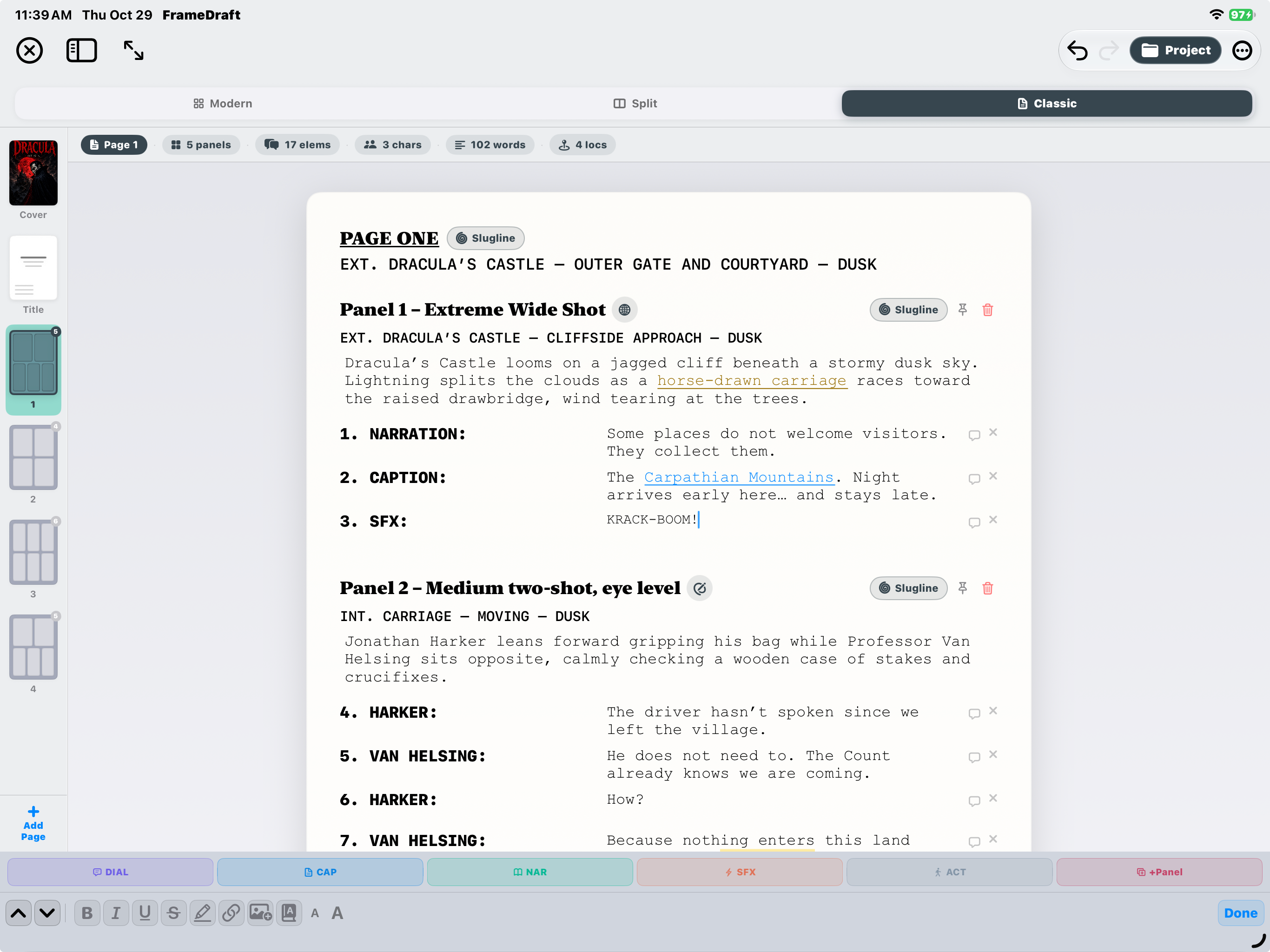
An original FrameDraft screenshot, shown smaller without cropping or changing the source. Soft gold highlights are website annotations, not app controls. Each explanation covers the field or control and its function in FrameDraft. The upper bottom bar adds script elements; the lower bar provides text editing, formatting and writing tools.
Read all script annotations
Pages & workspace
- Close editor
What it means: The circled X belongs to the editor workspace, not to an individual script element.
In FrameDraft: Use this control to leave the current editor view. The smaller X beside an element is a separate removal control.
- Show / hide page sidebar
What it means: The sidebar icon controls the column of cover, title and page thumbnails.
In FrameDraft: Toggle the page sidebar to navigate the comic or give the script more room on screen.
- Fullscreen
What it means: The diagonal arrows indicate the editor’s expanded viewing control.
In FrameDraft: Use the fullscreen control to expand the writing view. This changes the workspace, not the page or panel content.
- Undo
What it means: The backward arrow is Undo: return an edit to its previous state.
In FrameDraft: Use Undo for a recent editing change. It is separate from navigating to a previous comic page.
- Redo
What it means: The forward arrow is Redo. It is pale in this capture because no redo action is currently available.
In FrameDraft: Use Redo when available to reapply an undone edit. The website highlight explains the control; it does not perform the app action.
- Project menu
What it means: The folder-shaped Project control belongs to the current writing project.
In FrameDraft: Open Project for Story Outline, Acts & Groups, Corkboard, Characters, Project Notes and World Bible. Hover or tap this website highlight to explore the original menu screenshot and its options.
- More editor options
What it means: The ellipsis is a menu for additional editor options.
In FrameDraft: Open the ellipsis for exports, Find & Replace, Draft Capsule, Set Status, Writing Goal and Focus Mode. Hover or tap this website highlight to explore the original menu screenshot and its options.
- Modern editor
What it means: Modern is a card-based view of the same script.
In FrameDraft: Choose Modern to work with color-coded elements and collapsible cards. Switching editors changes the presentation, not the story.
- Split editor
What it means: Split combines Modern and Classic views.
In FrameDraft: Choose Split to see the same panel’s structured cards and script-style text together.
- Classic editor
What it means: Classic is the selected editor in this capture: a continuous, script-style reading view.
In FrameDraft: Choose Classic to write and read the script with page headings, panel descriptions and numbered elements.
- Cover in the sidebar
What it means: The Dracula cover is the first item in the page sidebar, separate from numbered story pages.
In FrameDraft: Select Cover in the sidebar to navigate to the comic’s cover rather than a story panel.
- Title page in the sidebar
What it means: The Title thumbnail represents the title page, separate from the cover and numbered comic pages.
In FrameDraft: Select Title to navigate to the project’s title page.
- Page sidebar / thumbnails
What it means: The left column shows pages 1–4 as layout thumbnails. Page 1 is selected; the small corner badge shows its five panels.
In FrameDraft: Tap a page thumbnail to move to that comic page. The thumbnails help you see page structure while writing; the sidebar toggle above can hide the column.
- Add Page
What it means: A comic page contains panels. Adding a page is different from adding a panel within the current page.
In FrameDraft: Tap Add Page for Artwork Page, Chapter Page or Panel Page. Hover or tap this website highlight to explore that menu. Use +Panel in the element bar to add a panel within the current page instead.
- Current-page indicator
What it means: Page 1 identifies the page currently displayed in the editor.
In FrameDraft: FrameDraft shows the active page here so you can keep your place while moving between sidebar thumbnails.
- Panel count
What it means: 5 panels is the number of illustrated moments on this page, not the number fully visible in this capture.
In FrameDraft: FrameDraft summarizes the current page’s panel count here. It is a page total, not a shot description or element number.
- Element count
What it means: 17 elems is the page’s script-element total, including its different element types.
In FrameDraft: Use this overview to distinguish the number of script elements from the number of panels. DIAL, CAP, NAR, SFX and ACT add different kinds of content.
- Character count
What it means: 3 chars summarizes the characters represented on this page; it does not mean three typed letters.
In FrameDraft: FrameDraft places the character total beside the panel, element, word and location totals for a quick page overview.
- Word count
What it means: 102 words is the word total shown for the current page.
In FrameDraft: FrameDraft displays the page’s word count here. It is an overview of the writing, not a limit on how much dialogue a panel should contain.
- Location count
What it means: 4 locs summarizes the location count displayed for this page.
In FrameDraft: FrameDraft places location information in the page summary; the sluglines below show the actual scene setting and time.
Script fields & panel shots
- PAGE heading / double-page spread
What it means: PAGE ONE identifies a page in the finished comic. A double-page spread is a composition across two facing pages.
In FrameDraft: Tap the PAGE heading in FrameDraft to access the double-page spread. This page control is separate from panel numbers and shot-and-angle descriptions.
- Page Slugline control
What it means: The page-level Slugline control sets the scene heading for the page.
In FrameDraft: Use the Slugline button beside PAGE to set its setting and time. FrameDraft displays the resulting heading directly underneath.
- Page slugline text
What it means: EXT. means exterior. DRACULA’S CASTLE — OUTER GATE AND COURTYARD is the setting, and DUSK is the time. This is direction for the creative team, not dialogue.
In FrameDraft: FrameDraft displays the page’s scene information here. Use the page Slugline control above to set it; individual panels also have their own sluglines.
- Panel 1 number
What it means: Panel 1 identifies the first illustrated moment on this page. It does not describe the camera framing.
In FrameDraft: FrameDraft numbers panels automatically. Use +Panel to add another panel. The adjacent shot-and-angle field is a separate control and has its own highlight.
- Panel 1 shot / angle
What it means: Extreme Wide Shot asks for a very broad view that establishes the castle and its surroundings. Shot size and viewing angle describe how to frame a panel, not which panel it is.
In FrameDraft: Use the panel’s shot-and-angle picker to specify its framing. FrameDraft shows that description beside the panel number; it is separate from PAGE and the scene slugline.
- Panel 2 number
What it means: Panel 2 is the next illustrated moment on this page, inside the moving carriage.
In FrameDraft: FrameDraft keeps this panel’s automatically numbered heading separate from its shot description, slugline, action and spoken elements.
- Panel 2 shot / eye level
What it means: Medium two-shot, eye level describes the framing, two subjects and viewing height. The action below identifies Harker and Van Helsing in the carriage.
In FrameDraft: Set the panel’s shot and angle with the shot-and-angle picker. The description guides the artist; it does not change the panel’s number or become spoken dialogue.
- Panel Slugline control
What it means: This Slugline control belongs to Panel 1, not to the whole page.
In FrameDraft: Use the Slugline button beside a panel to set that panel’s scene information. FrameDraft displays it below the panel heading.
- Panel 1 slugline text
What it means: EXT. DRACULA’S CASTLE — CLIFFSIDE APPROACH — DUSK places this panel outside at the cliffside approach. It is more specific than the page heading.
In FrameDraft: FrameDraft keeps scene information with each panel. Use that panel’s Slugline control to set it, independently of the page slugline.
- Panel 2 slugline text
What it means: INT. CARRIAGE — MOVING — DUSK places this panel inside the moving carriage. INT. and EXT. distinguish interior and exterior scenes.
In FrameDraft: Use Panel 2’s Slugline control to set its scene information. Each panel can have its own setting while remaining on the same comic page.
- Panel pin control
What it means: The pushpin is a panel-level control, beside Slugline and the trash icon. It is not a script-element number or a shot description.
In FrameDraft: Use the panel’s pushpin control for pinning. Extra panel instructions can also be kept as panel notes and reviewed in Project Notes, separate from reader-facing dialogue.
- Delete panel
What it means: The red trash icon belongs to the entire panel, not to a single line within it.
In FrameDraft: Use the panel’s trash control to remove that panel. The smaller X beside an element is a different control for removing just that element.
- Action / artist direction
What it means: “Dracula’s Castle looms on a jagged cliff beneath a stormy dusk sky.” describes what the artist should draw. The action continues on the next two lines; it is not reader-facing lettering.
In FrameDraft: Choose ACT in the element bar to add action to a panel. Classic presents it as script prose, separate from the numbered dialogue, caption, narration and SFX elements.
- Underlined text in the action
What it means: “horse-drawn carriage” is visibly underlined in gold within the action description. This is a formatting result, not a new script-element type.
In FrameDraft: Select words and use Underline in the lower formatting bar to style text. The phrase still belongs to the action element; use the separate link control for a hyperlink destination.
- Narration label
What it means: NARRATION identifies the storytelling voice, rather than a named character speaking aloud.
In FrameDraft: Choose NAR in the element bar to add narration. FrameDraft distinguishes it from captions, dialogue and artist direction.
- Narration text
What it means: “Some places do not welcome visitors. They collect them.” is the storytelling voice’s wording. Narration may be lettered in caption boxes even though its script label is different.
In FrameDraft: Write the storytelling voice in a NAR element. FrameDraft keeps its label and text together as one script element.
- Caption label
What it means: CAPTION labels reader-facing text outside a speech balloon, such as a place or time label.
In FrameDraft: Choose CAP in the element bar to add a caption. FrameDraft keeps the element label and its text distinct in Classic.
- Caption text
What it means: “The Carpathian Mountains. Night arrives early here… and stays late.” is the caption’s wording. This highlight covers its continuation line, separate from the link above.
In FrameDraft: Write the caption’s words in its CAP element. A page or panel slugline does not automatically become this reader-facing caption.
- Hyperlinked text in the caption
What it means: “Carpathian Mountains” is blue and underlined, showing linked text within the caption. The link’s destination is not displayed in this capture.
In FrameDraft: Select text and use the chain-link control in the formatting bar to add or edit a destination. Linked words remain part of the CAP element.
- SFX label
What it means: SFX marks a sound effect intended to appear as lettering in the finished comic.
In FrameDraft: Choose SFX in the element bar to add a sound-effect element. FrameDraft labels it separately from the action description.
- Sound-effect lettering
What it means: “KRACK-BOOM!” supplies the actual lettering for the sound, rather than only saying that thunder is heard.
In FrameDraft: Write the sound-effect wording in its SFX element. This keeps the lettering distinct from instructions about the scene.
- Element number
What it means: 4. places this script element in the page’s numbered sequence. It is not Panel 4: this line belongs to Panel 2.
In FrameDraft: FrameDraft shows the element’s number before its label or speaker in Classic, so you can distinguish element order from panel numbering.
- Dialogue speaker
What it means: HARKER identifies the character speaking this line. The speaker name is separate from the spoken words.
In FrameDraft: Choose DIAL in the element bar to add dialogue and identify its speaker. Classic places the name on the left and the spoken words on the right.
- Dialogue text
What it means: “The driver hasn’t spoken since we left the village.” is Harker’s spoken line: wording for a speech balloon, not artist direction.
In FrameDraft: Write the spoken words in a DIAL element. Modern, Classic and Split show different views of the same script content.
- Element note
What it means: The small speech-bubble control beside a line is for a note about that script element, not the dialogue balloon in the finished comic.
In FrameDraft: Use element notes to keep revision thoughts with the relevant text. Project Notes collects them with quoted text and page, panel and element context.
- Remove element
What it means: The small X beside a line is a removal control for that individual script element.
In FrameDraft: Use this X to remove the element, rather than deleting its whole panel with the red trash icon.
Element bar · add to the script
- DIAL · add dialogue
What it means: The upper bottom bar adds script elements. DIAL stands for dialogue: a character’s spoken words.
In FrameDraft: Tap DIAL to add dialogue to the panel and identify its speaker. This creates an element; it does not apply a text style.
- CAP · add caption
What it means: CAP stands for caption: reader-facing text outside a speech balloon, such as a location or time label.
In FrameDraft: Tap CAP to add a caption element to the panel. Its label and text appear separately in the Classic script view.
- NAR · add narration
What it means: NAR stands for narration: the script’s storytelling voice.
In FrameDraft: Tap NAR to add narration. FrameDraft keeps narration distinct from a caption, named dialogue or action description.
- SFX · add sound effect
What it means: SFX stands for sound effects: sounds expressed as lettering, such as KRACK-BOOM! on this page.
In FrameDraft: Tap SFX to add a sound-effect element and write the lettering you want in the finished comic.
- ACT · add action
What it means: ACT stands for action: visible events, settings and other instructions for the artist.
In FrameDraft: Tap ACT to add action to the panel. It is script direction, not words spoken by a character or printed in a caption.
- +Panel · add panel
What it means: A panel is one illustrated moment within the page. It can contain multiple script elements.
In FrameDraft: Tap +Panel to add a panel. FrameDraft numbers panels automatically; Add Page in the sidebar creates a comic page instead.
Formatting bar · edit text
- Previous-field arrow
What it means: The upward arrow is an editing-navigation control, not a formatting style.
In FrameDraft: Use the arrow to move back through editable fields while writing, without selecting a different script-element type.
- Next-field arrow
What it means: The downward arrow pairs with the upward arrow for editing navigation.
In FrameDraft: Use the arrow to move forward through editable fields. It is separate from the sidebar’s comic-page navigation.
- Bold
What it means: B applies bold styling to text. A text style is not a script-element type.
In FrameDraft: Select text and use Bold in the formatting bar to emphasize the words. The surrounding element remains dialogue, action, caption, narration or SFX.
- Italic
What it means: The slanted I is the italic text-style control.
In FrameDraft: Select words and use Italic to change their styling without adding another panel or changing the script element’s role.
- Underline
What it means: The underlined U is the underline control. The action above shows an underlined “horse-drawn carriage” phrase; underlining is not the same as adding a link.
In FrameDraft: Select text and use Underline to style it. Use the chain-link control when you want an actual hyperlink destination.
- Strikethrough
What it means: The crossed-out S applies a line through text, a formatting choice distinct from deleting an element.
In FrameDraft: Select text and use Strikethrough to cross out words. The element’s small X removes the element instead.
- Text highlighting
What it means: The marker is FrameDraft’s text-highlighting tool. It is different from the gold explanation overlays on this website.
In FrameDraft: Select words and use Highlight to mark them inside the script. The words remain part of their original script element.
- Hyperlink
What it means: The chain-link icon adds a destination to text. “Carpathian Mountains” in the caption above shows linked text.
In FrameDraft: Select text and use the link tool to add or edit its destination. A hyperlink is formatting, not a separate caption or dialogue element.
- Image / photo reference
What it means: The picture icon with a plus is the image tool, useful for visual reference while writing.
In FrameDraft: Use the image tool to add an image reference. FrameDraft is a comic-writing app; this tool does not generate comic artwork.
- Thesaurus
What it means: The book-shaped control is the thesaurus, a writing aid for exploring word alternatives.
In FrameDraft: Use the thesaurus for a selected word to explore alternative wording without leaving the writing tools.
- Smaller text
What it means: The smaller A is the smaller-text control. It does not add an action element; ACT is in the bar above.
In FrameDraft: Use the smaller A to reduce text size in the writing view. This is a text-size control, not a script-element choice.
- Larger text
What it means: The larger A pairs with the smaller A for text size.
In FrameDraft: Use the larger A to increase text size in the writing view. The panel, speaker and element labels remain the same.
- Done editing
What it means: Done belongs to the active editing controls, not to a panel or script-element label.
In FrameDraft: Tap Done to finish the active text-editing interaction. It does not mean the entire comic is complete or published.
Project menu
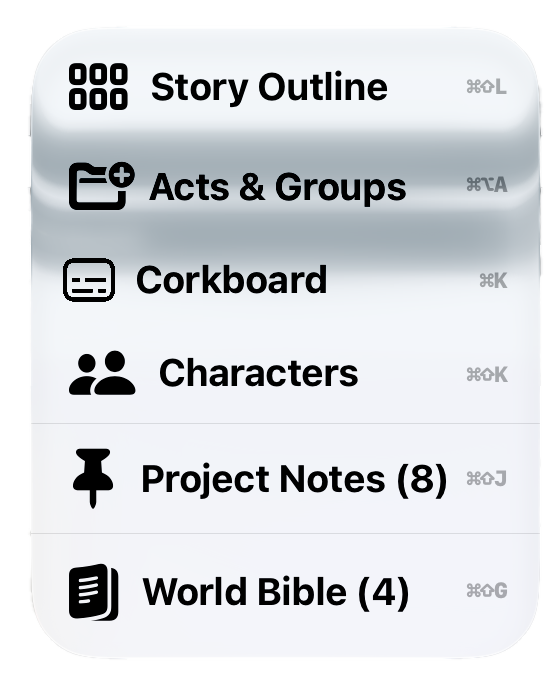
- Story Outline
What it means: An outline gives each page a place in the story before you write every panel.
In FrameDraft: Open Story Outline to review page summaries and story beats, then open a page card to plan its dramatic function and scene tags. Planning summaries stay separate from the script.
- Acts & Groups
What it means: Acts organize major story turns; groups keep related scenes and pages together.
In FrameDraft: Open Acts & Groups to organize acts and scene folders, assign script pages, and review the structure and balance of your story.
- Corkboard
What it means: A corkboard is a visual space for arranging story ideas and page summaries.
In FrameDraft: Open Corkboard to browse colored cards, follow links to script pages, or create cards for ideas, notes, characters, locations and story beats.
- Characters
What it means: The cast is the collection of characters who appear in your story.
In FrameDraft: Open Characters to browse the cast and develop character sheets with portraits, biographies and physical details. Character development is distinct from writing a dialogue line.
- Project Notes (8)
What it means: Project notes keep revision reminders separate from reader-facing script text. The 8 is the count shown in this capture.
In FrameDraft: Open Project Notes to review panel and element notes with their script context, track Open and Resolved items, and return to the relevant part of the script.
- World Bible (4)
What it means: A world bible records the recurring details of your fictional setting. The 4 is the count shown here, not a limit.
In FrameDraft: Open the Script World Bible to organize Characters, Locations, Factions and Lore & History. The separate Series World Bible keeps recurring world details across scripts and issues.
Three-dot menu · editor options
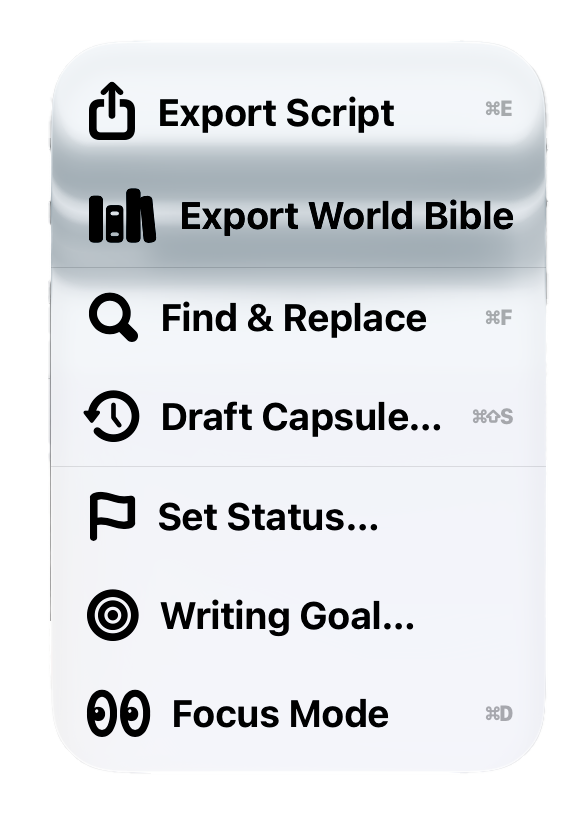
- Export Script
What it means: Exporting creates a document or file from your script for a handoff outside the editor.
In FrameDraft: Open Export Script to choose Modern Script, Classic Script, Plain Text or Fountain, or save a native .frd project. The website annotation explains the command; it does not export a file.
- Export World Bible
What it means: A World Bible export shares the reference material behind the story, rather than the comic script itself.
In FrameDraft: Open Export World Bible to create a document with its cover, entry and character totals, and a color-coded index. Print or share it alongside the script.
- Find & Replace
What it means: Find locates matching wording; Replace changes that wording without manually searching every panel.
In FrameDraft: Open Find & Replace to choose All Text, Characters, Locations or Notes in Script scope. Case and Whole Word matching narrow the search; Replace All applies the change across matches.
- Draft Capsule
What it means: A draft is a saved version of the script, separate from a project note or an export.
In FrameDraft: Open Draft Capsule to save named drafts, review them and switch an earlier draft into the current version while preserving the other version. It manages script versions, not a guaranteed backup of everything.
- Set Status
What it means: A status identifies the stage of the writing, such as Draft, In Progress or In Review.
In FrameDraft: Open Set Status to update the script’s workflow stage. Status helps organize your Library; it is not the number of pages or words you have written.
- Writing Goal
What it means: A writing goal is a target for your writing progress, separate from the current page’s statistics.
In FrameDraft: Open Writing Goal to set the writing target using the options offered in FrameDraft. A goal guides your progress; it does not write the story for you.
- Focus Mode
What it means: Focus Mode emphasizes the active panel and dims the surrounding content.
In FrameDraft: Open Focus Mode to choose Black, Charcoal, Light Sepia, Dark Brown or White, then adjust brightness and text size while moving between pages.
Add Page menu
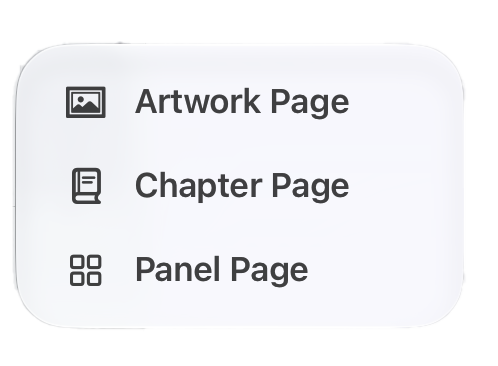
- Artwork Page
What it means: An artwork page is for an image rather than a sequence of scripted panels.
In FrameDraft: Choose Artwork Page when adding a page for artwork to the comic. FrameDraft organizes your writing and reference material; this is not a drawing tool or an AI image generator.
- Chapter Page
What it means: A chapter page marks a division in the comic or graphic novel.
In FrameDraft: Choose Chapter Page to add a chapter divider to the project. It is different from the script elements inside a panel.
- Panel Page
What it means: A panel page contains the illustrated moments and script elements of a comic page.
In FrameDraft: Choose Panel Page to add a page for your scripted panels. Once on that page, +Panel adds an individual panel; DIAL, CAP, NAR, SFX and ACT add its script elements.
How to read it: PAGE ONE identifies the comic page; tapping the PAGE heading in FrameDraft accesses the double-page spread. The page sidebar lets you move between the cover, title and story pages. A panel number identifies an illustrated moment, while the separate shot-and-angle description explains its framing. Panel 1 establishes Dracula’s castle in an extreme wide shot; Panel 2 shows Harker and Van Helsing inside the carriage in an eye-level two-shot. Later panels continue beyond the captured script area.
NARRATION, CAPTION and SFX identify different reader-facing elements. A character name such as HARKER identifies the speaker, while the text to its right is the dialogue. The number before the speaker is an element number, not a panel number. The gold-underlined “horse-drawn carriage” phrase and blue “Carpathian Mountains” link show formatting within script elements.
The scene headings—also called sluglines—give the location and time. EXT. indicates an exterior and INT. an interior. These headings orient the artist; they are not speech balloons. In this capture, the element bar at the bottom adds DIAL, CAP, NAR, SFX, ACT or a new panel. The separate formatting bar beneath it provides text styles, highlighting, links, images, the thesaurus and text-size controls. Each visible tool has its own explanation highlight.
To write your own comic script with FrameDraft, start a script in the Library, add a page, build its panels and write each part using the element bar. This guide follows our Dracula script to show how those controls connect—from planning the castle’s introduction to writing Harker’s dialogue and exporting the draft. FrameDraft organizes the writing; it is not a drawing tool or an AI comic generator.
1. Start your script in FrameDraft’s Library
Open the Library to start a new script or series. It keeps scripts together with their covers, titles, issue numbers, page counts and writing status. A series gives related issues a place of their own; unsorted scripts remain available for standalone work.
Open your script to enter the editor. In our example, Dracula is the project, with a cover, a title page and numbered story pages in the sidebar. Select a thumbnail to move to that page. The sidebar control at the top lets you hide or show this navigation while writing.
2. Plan the script with the Project menu
The Project button brings together the planning tools for the current script. In the annotated screenshot above, hover or tap Project, then explore the highlighted menu text.
- Story Outline: Open a page card to write its planning summary, choose a dramatic function and add scene tags. For our opening page, the summary could describe the arrival at Dracula’s castle. This planning summary stays separate from the script’s action and dialogue.
- Acts & Groups: Organize acts, scenes and their assigned pages. Use it to place that opening within the larger issue.
- Corkboard: Keep page summaries and loose ideas on cards, with links back to script pages.
- Characters and World Bible: Develop the cast and keep locations, factions and lore together. Harker and Van Helsing belong to the cast; the castle’s setting belongs in the world details. The Script World Bible holds this script’s reference material, while the Series World Bible supports recurring details across issues.
These tools support the script you are writing. You can return to them from Project without putting planning notes into a dialogue balloon.
3. Add a page, then build its panels
At the bottom of the sidebar, Add Page offers Artwork Page, Chapter Page and Panel Page. Choose Panel Page for a story page built from panels like PAGE ONE in our example. Artwork Page and Chapter Page serve different page roles; they are not additional panel types.
Inside the page, use +Panel in the element bar to add a panel. FrameDraft numbers panels automatically. Add Page creates another page; +Panel adds a moment within the current page.
Use the page’s Slugline control for its setting and time. Each panel also has its own Slugline control and separate shot-and-angle picker. Our first panel uses an Extreme Wide Shot outside the castle at dusk; the second uses a Medium two-shot, eye level inside the moving carriage. The framing, setting and panel number are separate fields—not one heading you have to type and maintain yourself.
4. Write our script’s structure with the element bar
Select the appropriate control in the upper of the two bottom bars to add content to a panel. The Dracula page shows how FrameDraft separates artist direction from words intended for the finished comic:
- ACT — Action: Describe the image. Our first panel begins, “Dracula’s Castle looms on a jagged cliff beneath a stormy dusk sky.” That is direction for the artist, not lettering.
- NAR — Narration: Add the storytelling voice. “Some places do not welcome visitors. They collect them.” belongs to a narration element.
- CAP — Caption: Add reader-facing text outside a speech balloon. Our caption identifies the Carpathian Mountains and continues with the description of night arriving early.
- SFX — Sound effect: Enter the lettering for a sound. Our thunder is written as “KRACK-BOOM!” in an SFX element.
- DIAL — Dialogue: Identify the speaker and write the spoken words. In Panel 2, HARKER says, “The driver hasn’t spoken since we left the village.” Classic shows his name separately from the line.
FrameDraft keeps those element types distinct. Their numbers identify the script-element sequence, not additional panels. You are building structured script content rather than manually formatting a blank document. This is FrameDraft’s script presentation, not a claim that every comic must use one universal format.
5. Choose your editor view and format your text
Classic, Modern and Split are three views of the same script. Classic is the continuous script-style view in our annotated example. Modern uses color-coded, collapsible element cards. Split shows Modern and Classic together for the same panel.
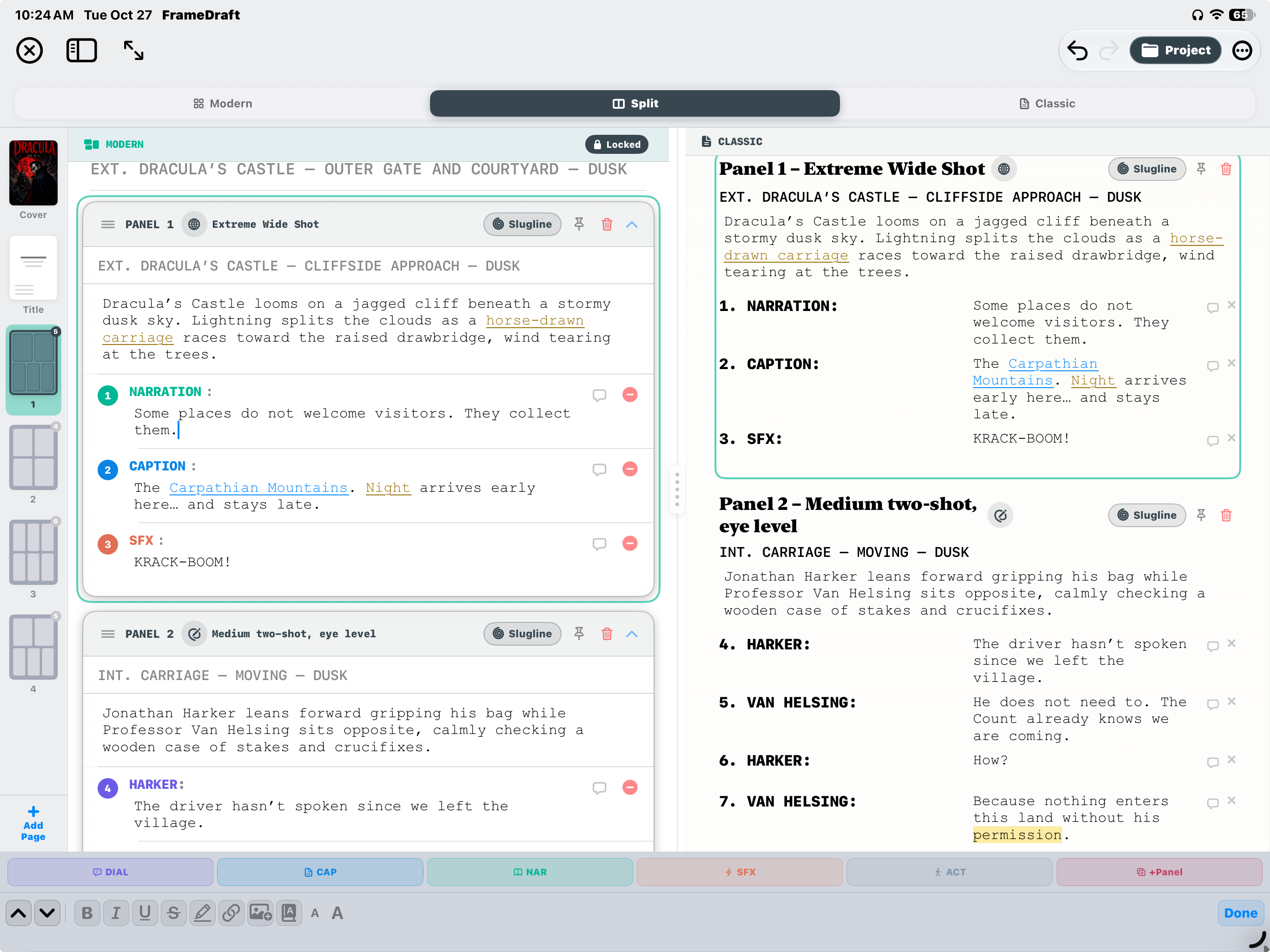
A separate FrameDraft screenshot showing the Split editor and the same two writing bars annotated in the Classic editor above. Select this image to see the tools at full resolution.
Explore the element and formatting barsThe lower formatting bar works on text rather than adding script elements. It provides bold, italic, underline, strikethrough, highlighting, links, image references, the thesaurus and text-size controls. In our script, the underlined “horse-drawn carriage” remains part of the action; the linked “Carpathian Mountains” remains part of the caption. Formatting does not change either element’s role.
Use the image tool for visual reference or the thesaurus to explore wording while you write. The gold highlights on this website explain the controls; they are separate from text highlighting inside FrameDraft.
6. Keep revisions connected to the script
For a comment about Harker’s line, use an element note beside that dialogue. For a broader comment about the carriage scene, use a panel note. Open Project → Project Notes to review notes with their page, panel and element context and return to the relevant writing.
The three-dot menu holds additional tools. Find & Replace helps update repeated wording, names or locations. Draft Capsule keeps named script versions so you can return to an earlier draft while preserving the other version. It is script-version management, not the same thing as Project Notes.
The same menu includes Set Status, Writing Goal and Focus Mode. Focus Mode emphasizes the active panel and dims surrounding content; it changes your writing view, not your script elements. Explore each option’s highlighted text in the screenshot popup above for its explanation.
7. Export the script and its world
Open three dots → Export Script when you want a document outside the editor. FrameDraft offers Modern Script, Classic Script, Plain Text and Fountain, as well as a native .frd project. Modern and Classic exports present your script differently; choose the one that suits your handoff.
Export World Bible is a separate command for the reference material behind the story. In our Dracula project, that distinction keeps the written pages separate from cast and setting information.
For a closer look at these tools, explore FrameDraft’s exports or the in-app Reference & App Guide. To begin your own script, return to the Library and follow the same page → panel → element workflow shown in our example.